
Keeping everyone aligned on product direction can be challenging. Your executive team wants the high-level view, engineers need the ground-level details, and product managers are in the middle trying to translate. Static slide decks and complex spreadsheets can create confusion and quickly become obsolete, often leading to more status meetings.
This is where Jira Product Discovery (JPD) views can help. They are communication tools that let you show the right information to the right audience, all from a single source of truth that connects discovery and delivery.
This guide will walk you through exactly which views to use for your key stakeholders, what information to include, and how to frame the conversation. The goal is to make your discovery process visible and your decisions obvious, so delivery stays aligned without all the extra meetings.
What are views? A quick primer
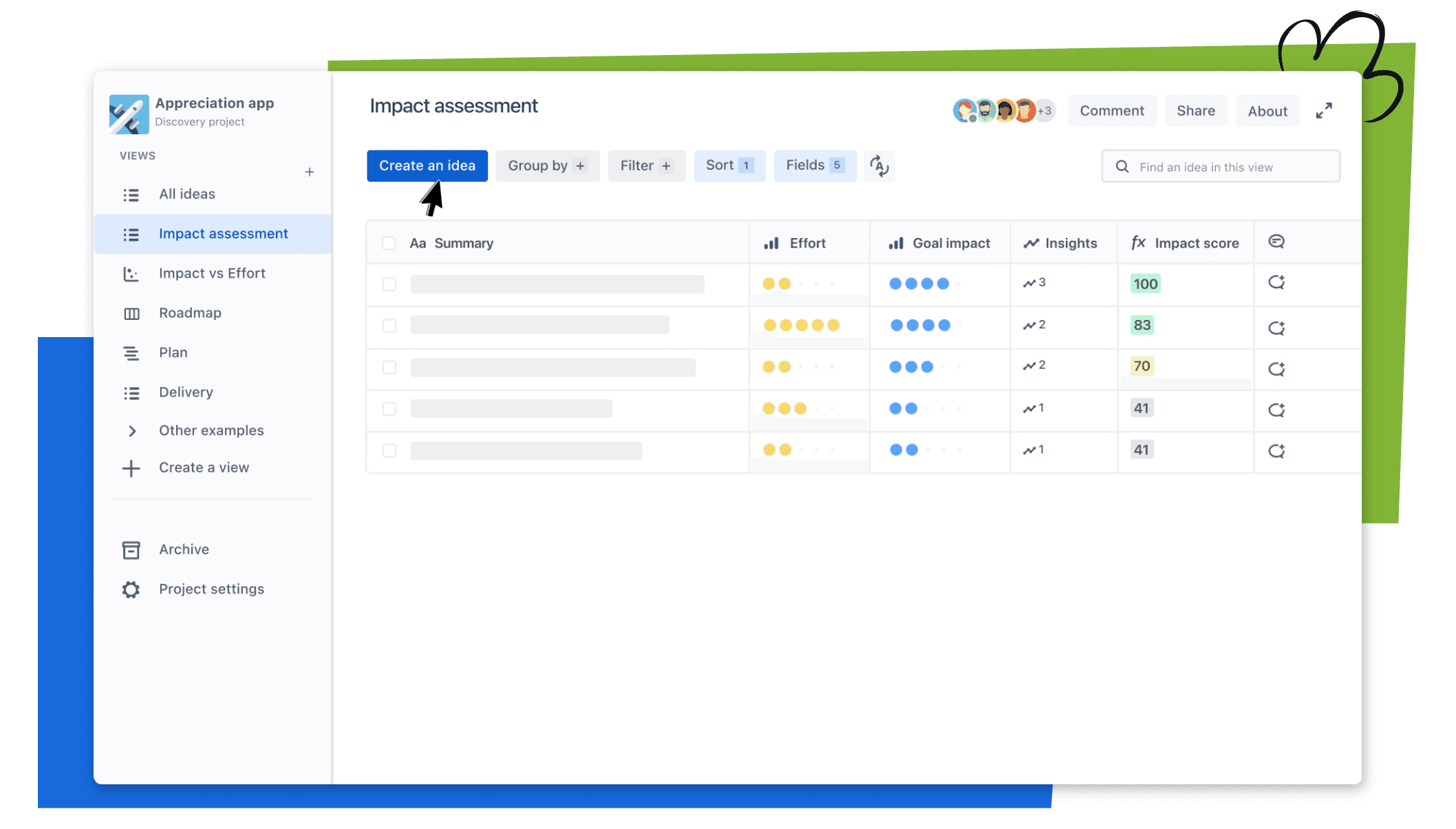
The main landing page for Atlassian's Jira Product Discovery.
Before we get into the specifics, let's quickly cover what we're talking about. Jira Product Discovery is Atlassian's tool for wrangling all your ideas before they ever become development work. It’s the dedicated space for your team to figure out what to build next.
At the core of JPD is something called "views." The best way to think of them is as flexible, shareable canvases that let you organize and visualize your ideas in different ways. You aren't creating separate reports for each audience; you're just creating different lenses to look at the same pool of ideas.
You will mainly be working with four types of views:
List view: This is your master spreadsheet. It's perfect for capturing, organizing, and triaging every idea that comes your way.
Matrix view: A simple two-dimensional grid for plotting ideas against things like impact versus effort. It makes prioritization a visual and team-friendly activity.
Board view: A classic kanban-style board showing the flow of work. You’ll usually have columns like ‘Now,’ ‘Next,’ and ‘Later.’
Timeline view: A high-level roadmap to see when big initiatives are planned over the coming months or quarters.
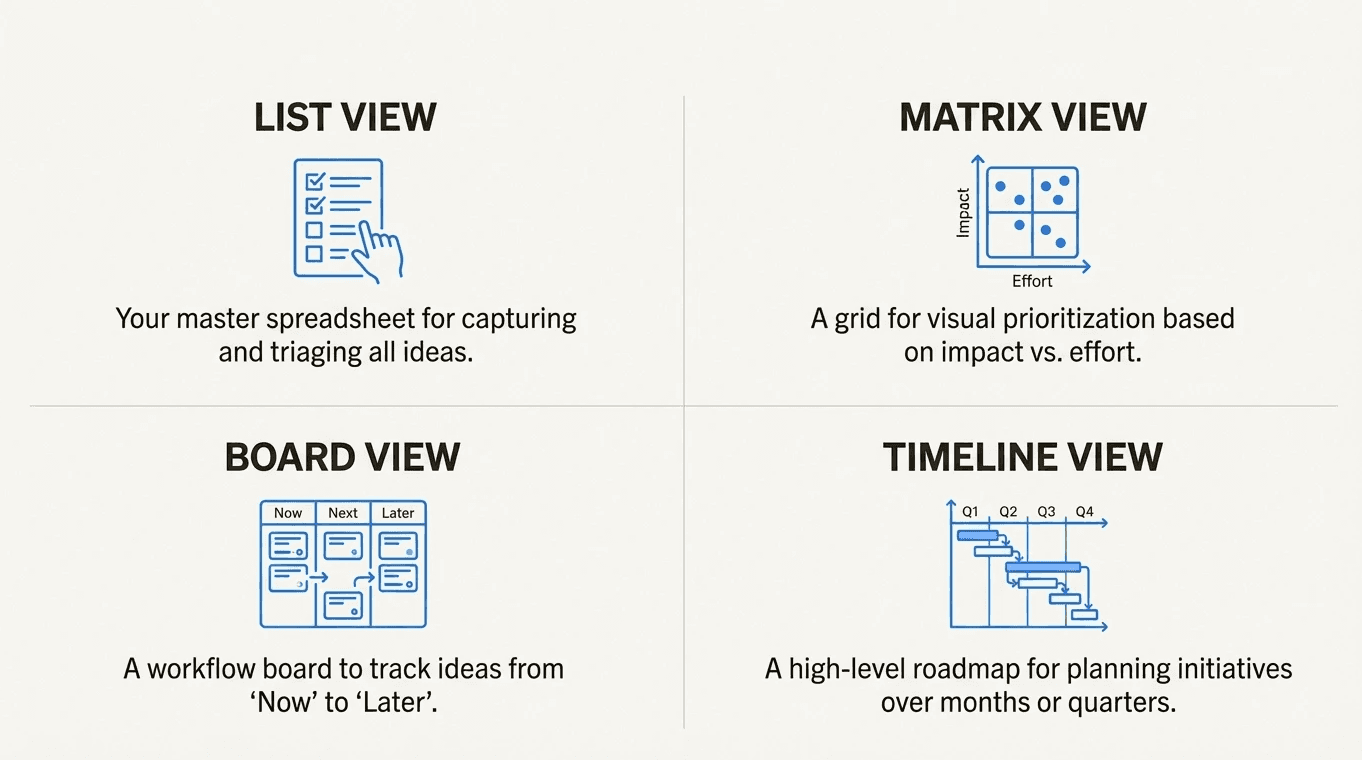
An infographic explaining the four main view types in Jira Product Discovery: List, Matrix, Board, and Timeline.
The key benefit is having one pool of ideas with multiple views tailored for different people. These views can be published, commented on, and shared with specific permissions, so everyone sees the latest info without you having to manually update five different documents.
Views for executive stakeholders
Executives don’t have time for the tiny details. They need a high-level summary of the big bets, the expected outcomes, and how things are tracking against the plan. Your goal with this view is to build their confidence and spark productive conversations about strategic trade-offs, not get them lost in the weeds.
The timeline view: A high-level roadmap
The Timeline view is well-suited for executive conversations. It visually lays out your major initiatives across quarters or months, making the strategic plan easy to digest. Atlassian recently rolled out updates that create a more flexible timeline, including a summary layout that fits more on the screen and time markers for key events like a conference or major launch.
Summarize bets with impact scores and key fields
Each card on your executive timeline should be simple. For this audience, less is more. Make sure to display fields like a calculated RICE score or separate Impact and Effort scores. This gives you an instant, data-informed reason for why certain items are prioritized over others. It helps shift the conversation from opinion to evidence.
You can also add a custom text field for "Bets" or "Trade-offs" to explicitly call out the strategic choices you're making. This helps build a culture of transparent planning and shows you've considered the alternatives.
Track real-time progress with the delivery progress field
This is a key feature for executive reporting. Every idea in JPD can be linked to one or more delivery epics in Jira Software. Once you link them, JPD shows an automated delivery progress bar right on the card. Your leadership team can see, at a glance, if a strategic initiative is on track, in progress, or done.
This progress bar isn't just a simple item count. You can configure it to track progress based on the number of work items or by story points. This provides a more accurate picture of completion and creates a direct, real-time connection between the plan and the execution, which reduces the need for manual status updates.
Views for product managers
For PMs, JPD views are the daily driver. This is where you make sense of all the incoming ideas, run a transparent prioritization process, and manage the flow of work from discovery into the development backlog. It’s your command center.
The matrix view for visual prioritization
The Matrix view is the best tool for visually comparing your ideas. By plotting them on an Impact vs. Effort grid, you can instantly identify and prioritize your quick wins (high impact, low effort) and big bets (high impact, high effort). This format turns prioritization from a subjective debate into a collaborative, data-informed exercise. When you can see everything laid out, it's much easier to build consensus with your team.
The list view for organized triage
The List view is your central hub for every single idea and piece of feedback. It functions like a powerful, collaborative spreadsheet. This is the best view for triaging new ideas as they come in, filling out missing data fields in bulk, and even creating delivery tickets directly from your ideas. This direct link streamlines the handoff to engineering and makes sure nothing gets lost in translation.
You can also use custom formulas in the list view to automatically calculate prioritization scores like RICE (Reach, Impact, Confidence, Effort). This saves time and keeps your prioritization process consistent and transparent.
The board view for managing workflow
The Board view helps you manage an idea's journey from a spark of inspiration to a delivered feature. Set up columns that match your discovery workflow, like ‘New Ideas,’ ‘Validating,’ ‘Prioritized,’ and ‘Ready for Dev.’ This gives you a clear visual of your entire pipeline, making it easy to spot bottlenecks and see where you need to focus. It also serves as a clear handoff point to the engineering team.
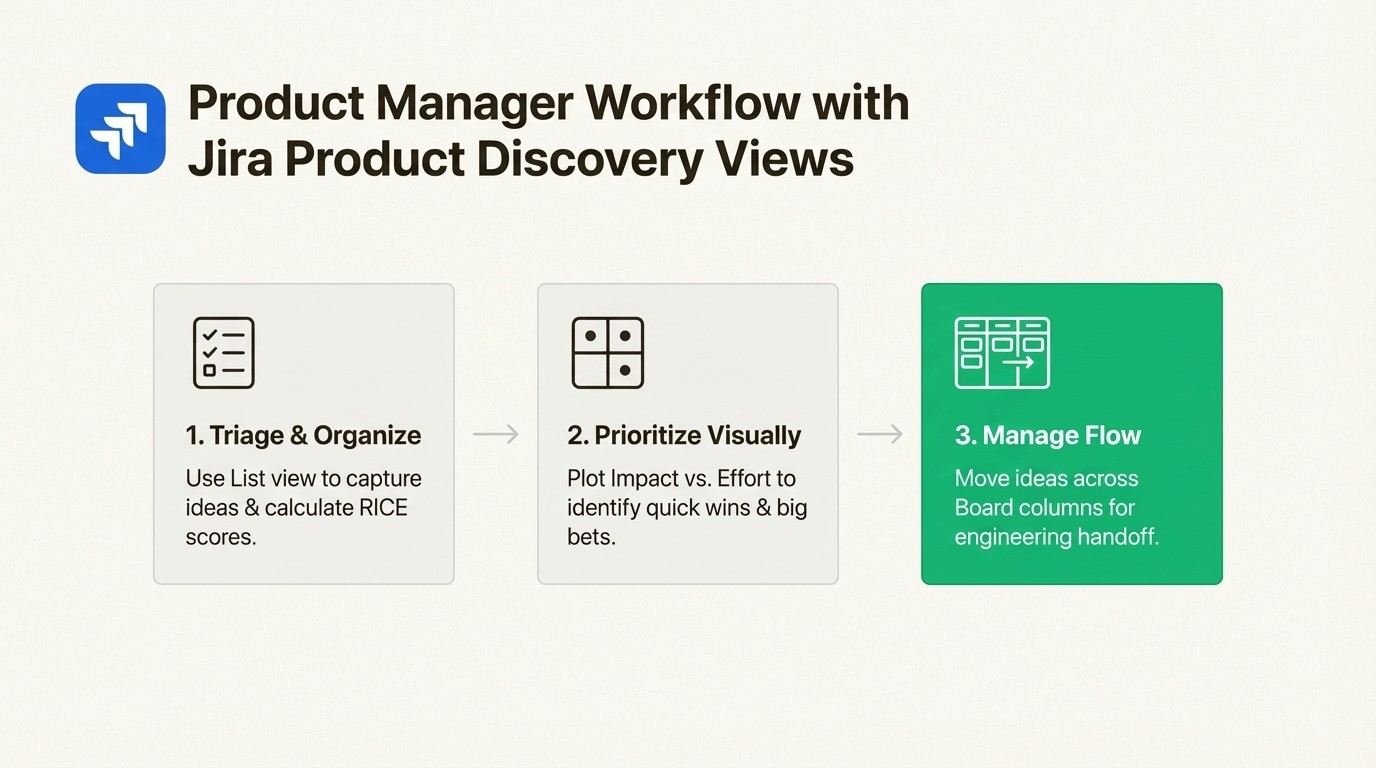
A workflow diagram showing how product managers use List, Matrix, and Board views to manage ideas from triage to development handoff.
Views for engineers
Engineers don't just need a ticket; they need to understand the problem they're solving. A good JPD view gives them the why behind the what, provides a direct link to the work, and keeps them in the loop on any scope changes. It bridges the gap between high-level product strategy and the code they write every day.
Using a shared board view with linked Jira issues
The best way to collaborate with your engineering team is through a shared Board view. The trick is to make sure the cards on this board clearly display the linked Jira issues. This creates a seamless workflow. An engineer can look at the JPD card for the problem statement and customer context, then click directly into the Jira epic to see the technical details. You can manage this connection in the delivery tab, where you can convert ideas into Jira epics or link them to existing work.
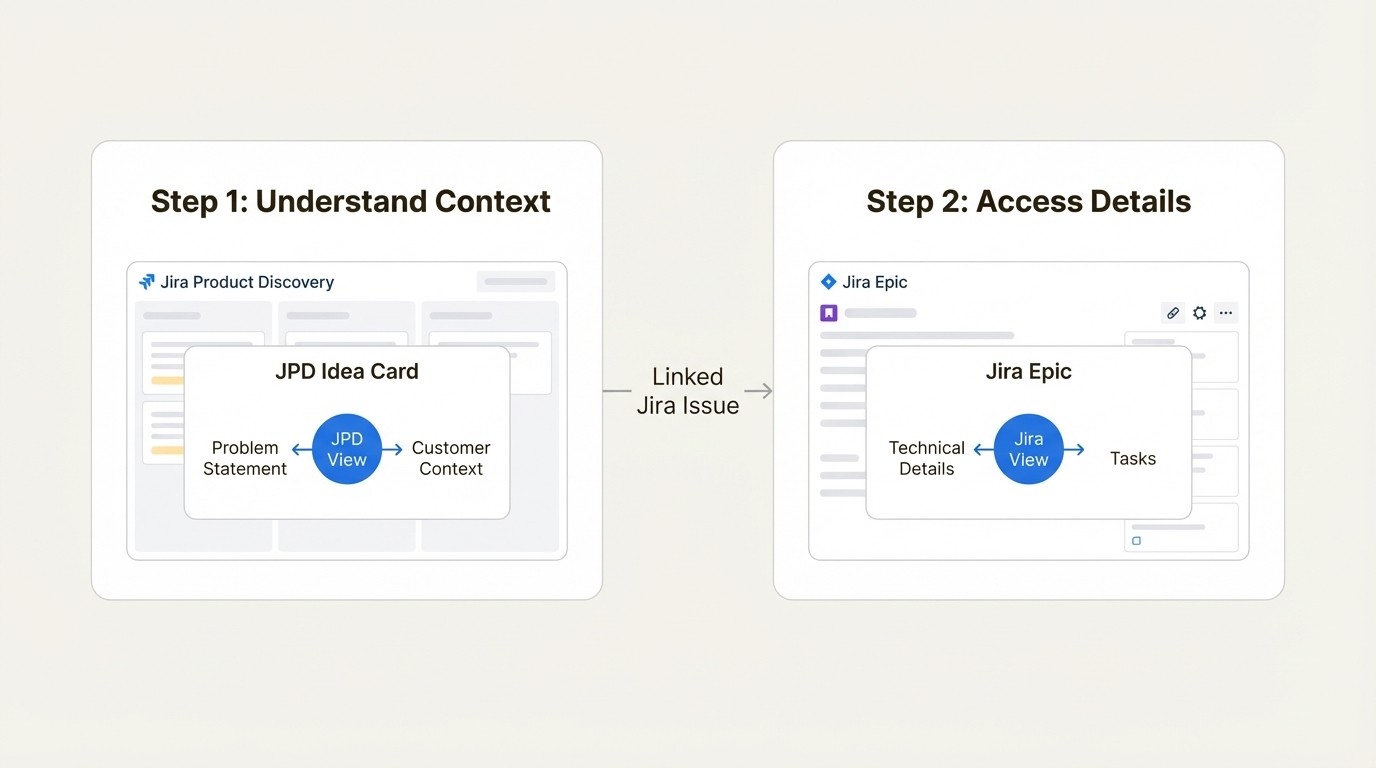
A workflow showing how engineers use a shared Board view to understand context from a JPD card and access technical details in a linked Jira epic.
This constant, visible link between the idea and the work means no one has to hunt for context in separate documents or Slack channels. The "why" is always right next to the "what."
Best practices
The fields on the JPD card should offer a tight, unambiguous problem statement. This ensures the team is solving the right problem from the start. As work progresses, the status and progress from the linked Jira issues are reflected automatically in the JPD view, which cuts down on administrative work for everyone.
You should also use the comments on a view or an individual idea as a living document for decisions. Anyone with access can comment on views, creating a historical record of trade-offs and scope changes right next to the work itself. This keeps everyone on the same page and provides a clear audit trail for any decisions made during development.
Views for customer-facing teams
Your sales, support, and marketing teams are on the front lines. They need to know what’s coming to set proper customer expectations, and they need a simple way to channel valuable feedback back to the product team. JPD can be their single source of truth for both.
A filtered list view for relevant updates
You probably don't want to share your entire messy backlog with the whole company. Instead, create a simplified, read-only List view just for your customer-facing teams. Use filters to show only the ideas that are relevant to them. For example, you could create an "Enterprise Customer Roadmap" view that's filtered by a ‘Customer Segment’ field, showing only items prioritized for that group. This gives them a safe, curated resource to answer customer questions without having to ping a PM every time.
Attaching customer insights as evidence
The Insights feature is a useful way to collect and centralize customer feedback. Your teams can link support tickets, sales call notes, or customer quotes directly to product ideas. They can capture these insights from anywhere using the Jira Product Discovery Chrome extension or from integrated tools like Slack and Microsoft Teams.
Each insight you add can be given an impact rating, which helps product managers quickly see which ideas are backed by the most customer evidence. For example, the JPD team at Atlassian uses a 'User feedback' view to triage and assign all incoming feedback directly to ideas, ensuring the voice of the customer is always part of the prioritization process.
Shareable roadmaps for external communication
A filtered Timeline view is great for giving internal teams a simple, visual answer to "what's coming next?" But when you need to communicate your roadmap to actual customers, you need a more polished solution. JPD views are primarily designed for internal alignment.
For external sharing, tools like Released.so connect directly to Jira and JPD to create a public-facing Idea Portal or a shareable roadmap. This lets you collect customer feedback in a branded, organized space and share live, tailored roadmaps without giving customers access to your internal Jira instance. This helps close the loop and keep your users informed.
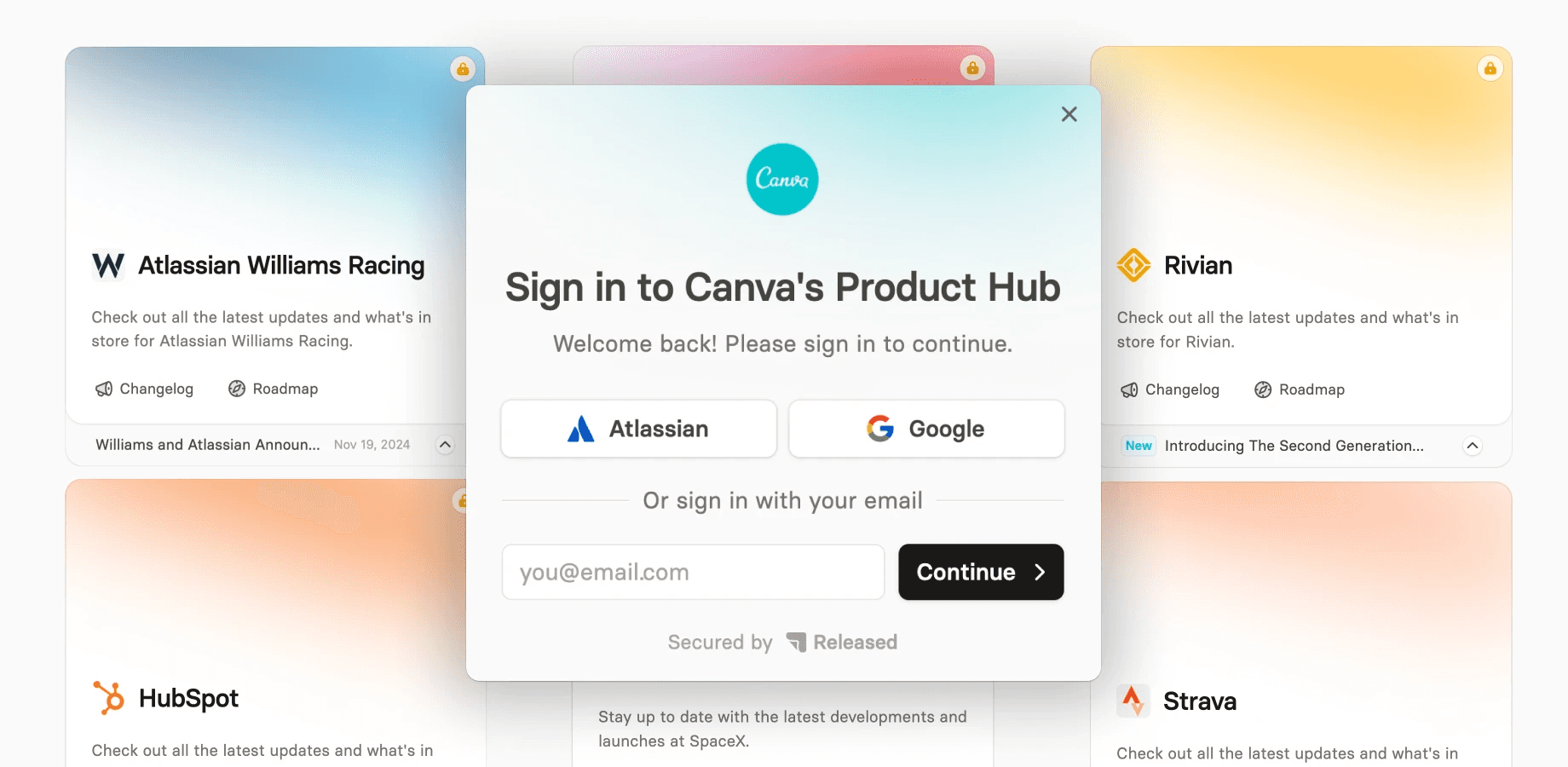
The landing page for Released.so, a tool for creating customer and stakeholder roadmaps from Jira.
A view for everyone, a meeting for no one
At the end of the day, Jira Product Discovery views are a framework for communication. By tailoring the format and the level of detail to your specific audience, you can reduce the friction and ambiguity common in product development cycles.
When you get it right, executives get the strategic oversight they need, PMs get a command center for making decisions, engineers get the context to build the right thing, and customer-facing teams get the clarity they need to support and sell your product. It all comes from one connected system. The result is fewer status meetings, less time spent building slide decks, and more time spent making smart, evidence-backed decisions about what to build next.
To see these views in action and learn how to customize them for your own teams, check out this helpful video walkthrough. It covers the basics of creating and sharing different views to keep everyone aligned.
This video walkthrough demonstrates how to create, customize, and share different views in Jira Product Discovery to keep everyone aligned.
Your next steps
Don't try to boil the ocean. Start with your biggest communication headache. Is it the quarterly executive roadmap review? Create a Timeline view. Is your backlog prioritization a constant debate? Set up a Matrix view. Start small, show the value, and build from there.
Once your internal roadmaps are clear and your teams are aligned, the next logical step is to communicate that progress externally. Released.so helps you close the loop by publishing clear product updates and release notes directly from your development work. It can even use AI to generate release notes from Jira tickets, keeping your customers aligned with your internal team, often with less manual work.
Frequently Asked Questions
What is the main takeaway for aligning different teams?
The main takeaway is to use tailored views (Timeline for execs, Matrix for PMs, Board for engineers) to show the right information to the right audience, all from a single source of truth. This approach reduces confusion and eliminates the need for numerous status meetings.
Which view is best for executive presentations?
The Timeline view is best for executives. It provides a high-level, visual roadmap of major initiatives across months or quarters, focusing on strategic goals and delivery progress without getting bogged down in details.
How can product managers handle prioritization with JPD views?
The guide recommends using the Matrix view. By plotting ideas on an Impact vs. Effort grid, PMs can visually identify quick wins and big bets, turning prioritization into a collaborative, data-informed exercise rather than a subjective debate.
How can you keep engineers in the loop with JPD views?
Yes, by using a shared Board view with linked Jira issues. This gives engineers direct access to the "why" (the customer context in JPD) right alongside the "what" (the technical details in the Jira ticket), ensuring they have full context.
Can JPD views be used to communicate with customers?
While JPD views are primarily for internal alignment, you can create filtered, read-only List views for internal customer-facing teams. For direct customer communication, the guide suggests using a dedicated tool like Released.so, which integrates with JPD to create public-facing roadmaps and idea portals.
What is the most important field for showing progress to leadership?
The automated "delivery progress" field is crucial for leadership. It links a JPD idea to a Jira epic and displays a real-time progress bar, showing if a strategic initiative is on track without needing manual updates.
Keeping everyone aligned on product direction can be challenging. Your executive team wants the high-level view, engineers need the ground-level details, and product managers are in the middle trying to translate. Static slide decks and complex spreadsheets can create confusion and quickly become obsolete, often leading to more status meetings.
This is where Jira Product Discovery (JPD) views can help. They are communication tools that let you show the right information to the right audience, all from a single source of truth that connects discovery and delivery.
This guide will walk you through exactly which views to use for your key stakeholders, what information to include, and how to frame the conversation. The goal is to make your discovery process visible and your decisions obvious, so delivery stays aligned without all the extra meetings.
What are views? A quick primer
The main landing page for Atlassian's Jira Product Discovery.
Before we get into the specifics, let's quickly cover what we're talking about. Jira Product Discovery is Atlassian's tool for wrangling all your ideas before they ever become development work. It’s the dedicated space for your team to figure out what to build next.
At the core of JPD is something called "views." The best way to think of them is as flexible, shareable canvases that let you organize and visualize your ideas in different ways. You aren't creating separate reports for each audience; you're just creating different lenses to look at the same pool of ideas.
You will mainly be working with four types of views:
List view: This is your master spreadsheet. It's perfect for capturing, organizing, and triaging every idea that comes your way.
Matrix view: A simple two-dimensional grid for plotting ideas against things like impact versus effort. It makes prioritization a visual and team-friendly activity.
Board view: A classic kanban-style board showing the flow of work. You’ll usually have columns like ‘Now,’ ‘Next,’ and ‘Later.’
Timeline view: A high-level roadmap to see when big initiatives are planned over the coming months or quarters.
An infographic explaining the four main view types in Jira Product Discovery: List, Matrix, Board, and Timeline.
The key benefit is having one pool of ideas with multiple views tailored for different people. These views can be published, commented on, and shared with specific permissions, so everyone sees the latest info without you having to manually update five different documents.
Views for executive stakeholders
Executives don’t have time for the tiny details. They need a high-level summary of the big bets, the expected outcomes, and how things are tracking against the plan. Your goal with this view is to build their confidence and spark productive conversations about strategic trade-offs, not get them lost in the weeds.
The timeline view: A high-level roadmap
The Timeline view is well-suited for executive conversations. It visually lays out your major initiatives across quarters or months, making the strategic plan easy to digest. Atlassian recently rolled out updates that create a more flexible timeline, including a summary layout that fits more on the screen and time markers for key events like a conference or major launch.
Summarize bets with impact scores and key fields
Each card on your executive timeline should be simple. For this audience, less is more. Make sure to display fields like a calculated RICE score or separate Impact and Effort scores. This gives you an instant, data-informed reason for why certain items are prioritized over others. It helps shift the conversation from opinion to evidence.
You can also add a custom text field for "Bets" or "Trade-offs" to explicitly call out the strategic choices you're making. This helps build a culture of transparent planning and shows you've considered the alternatives.
Track real-time progress with the delivery progress field
This is a key feature for executive reporting. Every idea in JPD can be linked to one or more delivery epics in Jira Software. Once you link them, JPD shows an automated delivery progress bar right on the card. Your leadership team can see, at a glance, if a strategic initiative is on track, in progress, or done.
This progress bar isn't just a simple item count. You can configure it to track progress based on the number of work items or by story points. This provides a more accurate picture of completion and creates a direct, real-time connection between the plan and the execution, which reduces the need for manual status updates.
Views for product managers
For PMs, JPD views are the daily driver. This is where you make sense of all the incoming ideas, run a transparent prioritization process, and manage the flow of work from discovery into the development backlog. It’s your command center.
The matrix view for visual prioritization
The Matrix view is the best tool for visually comparing your ideas. By plotting them on an Impact vs. Effort grid, you can instantly identify and prioritize your quick wins (high impact, low effort) and big bets (high impact, high effort). This format turns prioritization from a subjective debate into a collaborative, data-informed exercise. When you can see everything laid out, it's much easier to build consensus with your team.
The list view for organized triage
The List view is your central hub for every single idea and piece of feedback. It functions like a powerful, collaborative spreadsheet. This is the best view for triaging new ideas as they come in, filling out missing data fields in bulk, and even creating delivery tickets directly from your ideas. This direct link streamlines the handoff to engineering and makes sure nothing gets lost in translation.
You can also use custom formulas in the list view to automatically calculate prioritization scores like RICE (Reach, Impact, Confidence, Effort). This saves time and keeps your prioritization process consistent and transparent.
The board view for managing workflow
The Board view helps you manage an idea's journey from a spark of inspiration to a delivered feature. Set up columns that match your discovery workflow, like ‘New Ideas,’ ‘Validating,’ ‘Prioritized,’ and ‘Ready for Dev.’ This gives you a clear visual of your entire pipeline, making it easy to spot bottlenecks and see where you need to focus. It also serves as a clear handoff point to the engineering team.
A workflow diagram showing how product managers use List, Matrix, and Board views to manage ideas from triage to development handoff.
Views for engineers
Engineers don't just need a ticket; they need to understand the problem they're solving. A good JPD view gives them the why behind the what, provides a direct link to the work, and keeps them in the loop on any scope changes. It bridges the gap between high-level product strategy and the code they write every day.
Using a shared board view with linked Jira issues
The best way to collaborate with your engineering team is through a shared Board view. The trick is to make sure the cards on this board clearly display the linked Jira issues. This creates a seamless workflow. An engineer can look at the JPD card for the problem statement and customer context, then click directly into the Jira epic to see the technical details. You can manage this connection in the delivery tab, where you can convert ideas into Jira epics or link them to existing work.
A workflow showing how engineers use a shared Board view to understand context from a JPD card and access technical details in a linked Jira epic.
This constant, visible link between the idea and the work means no one has to hunt for context in separate documents or Slack channels. The "why" is always right next to the "what."
Best practices
The fields on the JPD card should offer a tight, unambiguous problem statement. This ensures the team is solving the right problem from the start. As work progresses, the status and progress from the linked Jira issues are reflected automatically in the JPD view, which cuts down on administrative work for everyone.
You should also use the comments on a view or an individual idea as a living document for decisions. Anyone with access can comment on views, creating a historical record of trade-offs and scope changes right next to the work itself. This keeps everyone on the same page and provides a clear audit trail for any decisions made during development.
Views for customer-facing teams
Your sales, support, and marketing teams are on the front lines. They need to know what’s coming to set proper customer expectations, and they need a simple way to channel valuable feedback back to the product team. JPD can be their single source of truth for both.
A filtered list view for relevant updates
You probably don't want to share your entire messy backlog with the whole company. Instead, create a simplified, read-only List view just for your customer-facing teams. Use filters to show only the ideas that are relevant to them. For example, you could create an "Enterprise Customer Roadmap" view that's filtered by a ‘Customer Segment’ field, showing only items prioritized for that group. This gives them a safe, curated resource to answer customer questions without having to ping a PM every time.
Attaching customer insights as evidence
The Insights feature is a useful way to collect and centralize customer feedback. Your teams can link support tickets, sales call notes, or customer quotes directly to product ideas. They can capture these insights from anywhere using the Jira Product Discovery Chrome extension or from integrated tools like Slack and Microsoft Teams.
Each insight you add can be given an impact rating, which helps product managers quickly see which ideas are backed by the most customer evidence. For example, the JPD team at Atlassian uses a 'User feedback' view to triage and assign all incoming feedback directly to ideas, ensuring the voice of the customer is always part of the prioritization process.
Shareable roadmaps for external communication
A filtered Timeline view is great for giving internal teams a simple, visual answer to "what's coming next?" But when you need to communicate your roadmap to actual customers, you need a more polished solution. JPD views are primarily designed for internal alignment.
For external sharing, tools like Released.so connect directly to Jira and JPD to create a public-facing Idea Portal or a shareable roadmap. This lets you collect customer feedback in a branded, organized space and share live, tailored roadmaps without giving customers access to your internal Jira instance. This helps close the loop and keep your users informed.
The landing page for Released.so, a tool for creating customer and stakeholder roadmaps from Jira.
A view for everyone, a meeting for no one
At the end of the day, Jira Product Discovery views are a framework for communication. By tailoring the format and the level of detail to your specific audience, you can reduce the friction and ambiguity common in product development cycles.
When you get it right, executives get the strategic oversight they need, PMs get a command center for making decisions, engineers get the context to build the right thing, and customer-facing teams get the clarity they need to support and sell your product. It all comes from one connected system. The result is fewer status meetings, less time spent building slide decks, and more time spent making smart, evidence-backed decisions about what to build next.
To see these views in action and learn how to customize them for your own teams, check out this helpful video walkthrough. It covers the basics of creating and sharing different views to keep everyone aligned.
This video walkthrough demonstrates how to create, customize, and share different views in Jira Product Discovery to keep everyone aligned.
Your next steps
Don't try to boil the ocean. Start with your biggest communication headache. Is it the quarterly executive roadmap review? Create a Timeline view. Is your backlog prioritization a constant debate? Set up a Matrix view. Start small, show the value, and build from there.
Once your internal roadmaps are clear and your teams are aligned, the next logical step is to communicate that progress externally. Released.so helps you close the loop by publishing clear product updates and release notes directly from your development work. It can even use AI to generate release notes from Jira tickets, keeping your customers aligned with your internal team, often with less manual work.
Frequently Asked Questions
What is the main takeaway for aligning different teams?
The main takeaway is to use tailored views (Timeline for execs, Matrix for PMs, Board for engineers) to show the right information to the right audience, all from a single source of truth. This approach reduces confusion and eliminates the need for numerous status meetings.
Which view is best for executive presentations?
The Timeline view is best for executives. It provides a high-level, visual roadmap of major initiatives across months or quarters, focusing on strategic goals and delivery progress without getting bogged down in details.
How can product managers handle prioritization with JPD views?
The guide recommends using the Matrix view. By plotting ideas on an Impact vs. Effort grid, PMs can visually identify quick wins and big bets, turning prioritization into a collaborative, data-informed exercise rather than a subjective debate.
How can you keep engineers in the loop with JPD views?
Yes, by using a shared Board view with linked Jira issues. This gives engineers direct access to the "why" (the customer context in JPD) right alongside the "what" (the technical details in the Jira ticket), ensuring they have full context.
Can JPD views be used to communicate with customers?
While JPD views are primarily for internal alignment, you can create filtered, read-only List views for internal customer-facing teams. For direct customer communication, the guide suggests using a dedicated tool like Released.so, which integrates with JPD to create public-facing roadmaps and idea portals.
What is the most important field for showing progress to leadership?
The automated "delivery progress" field is crucial for leadership. It links a JPD idea to a Jira epic and displays a real-time progress bar, showing if a strategic initiative is on track without needing manual updates.
Keeping everyone aligned on product direction can be challenging. Your executive team wants the high-level view, engineers need the ground-level details, and product managers are in the middle trying to translate. Static slide decks and complex spreadsheets can create confusion and quickly become obsolete, often leading to more status meetings.
This is where Jira Product Discovery (JPD) views can help. They are communication tools that let you show the right information to the right audience, all from a single source of truth that connects discovery and delivery.
This guide will walk you through exactly which views to use for your key stakeholders, what information to include, and how to frame the conversation. The goal is to make your discovery process visible and your decisions obvious, so delivery stays aligned without all the extra meetings.
What are views? A quick primer
The main landing page for Atlassian's Jira Product Discovery.
Before we get into the specifics, let's quickly cover what we're talking about. Jira Product Discovery is Atlassian's tool for wrangling all your ideas before they ever become development work. It’s the dedicated space for your team to figure out what to build next.
At the core of JPD is something called "views." The best way to think of them is as flexible, shareable canvases that let you organize and visualize your ideas in different ways. You aren't creating separate reports for each audience; you're just creating different lenses to look at the same pool of ideas.
You will mainly be working with four types of views:
List view: This is your master spreadsheet. It's perfect for capturing, organizing, and triaging every idea that comes your way.
Matrix view: A simple two-dimensional grid for plotting ideas against things like impact versus effort. It makes prioritization a visual and team-friendly activity.
Board view: A classic kanban-style board showing the flow of work. You’ll usually have columns like ‘Now,’ ‘Next,’ and ‘Later.’
Timeline view: A high-level roadmap to see when big initiatives are planned over the coming months or quarters.
An infographic explaining the four main view types in Jira Product Discovery: List, Matrix, Board, and Timeline.
The key benefit is having one pool of ideas with multiple views tailored for different people. These views can be published, commented on, and shared with specific permissions, so everyone sees the latest info without you having to manually update five different documents.
Views for executive stakeholders
Executives don’t have time for the tiny details. They need a high-level summary of the big bets, the expected outcomes, and how things are tracking against the plan. Your goal with this view is to build their confidence and spark productive conversations about strategic trade-offs, not get them lost in the weeds.
The timeline view: A high-level roadmap
The Timeline view is well-suited for executive conversations. It visually lays out your major initiatives across quarters or months, making the strategic plan easy to digest. Atlassian recently rolled out updates that create a more flexible timeline, including a summary layout that fits more on the screen and time markers for key events like a conference or major launch.
Summarize bets with impact scores and key fields
Each card on your executive timeline should be simple. For this audience, less is more. Make sure to display fields like a calculated RICE score or separate Impact and Effort scores. This gives you an instant, data-informed reason for why certain items are prioritized over others. It helps shift the conversation from opinion to evidence.
You can also add a custom text field for "Bets" or "Trade-offs" to explicitly call out the strategic choices you're making. This helps build a culture of transparent planning and shows you've considered the alternatives.
Track real-time progress with the delivery progress field
This is a key feature for executive reporting. Every idea in JPD can be linked to one or more delivery epics in Jira Software. Once you link them, JPD shows an automated delivery progress bar right on the card. Your leadership team can see, at a glance, if a strategic initiative is on track, in progress, or done.
This progress bar isn't just a simple item count. You can configure it to track progress based on the number of work items or by story points. This provides a more accurate picture of completion and creates a direct, real-time connection between the plan and the execution, which reduces the need for manual status updates.
Views for product managers
For PMs, JPD views are the daily driver. This is where you make sense of all the incoming ideas, run a transparent prioritization process, and manage the flow of work from discovery into the development backlog. It’s your command center.
The matrix view for visual prioritization
The Matrix view is the best tool for visually comparing your ideas. By plotting them on an Impact vs. Effort grid, you can instantly identify and prioritize your quick wins (high impact, low effort) and big bets (high impact, high effort). This format turns prioritization from a subjective debate into a collaborative, data-informed exercise. When you can see everything laid out, it's much easier to build consensus with your team.
The list view for organized triage
The List view is your central hub for every single idea and piece of feedback. It functions like a powerful, collaborative spreadsheet. This is the best view for triaging new ideas as they come in, filling out missing data fields in bulk, and even creating delivery tickets directly from your ideas. This direct link streamlines the handoff to engineering and makes sure nothing gets lost in translation.
You can also use custom formulas in the list view to automatically calculate prioritization scores like RICE (Reach, Impact, Confidence, Effort). This saves time and keeps your prioritization process consistent and transparent.
The board view for managing workflow
The Board view helps you manage an idea's journey from a spark of inspiration to a delivered feature. Set up columns that match your discovery workflow, like ‘New Ideas,’ ‘Validating,’ ‘Prioritized,’ and ‘Ready for Dev.’ This gives you a clear visual of your entire pipeline, making it easy to spot bottlenecks and see where you need to focus. It also serves as a clear handoff point to the engineering team.
A workflow diagram showing how product managers use List, Matrix, and Board views to manage ideas from triage to development handoff.
Views for engineers
Engineers don't just need a ticket; they need to understand the problem they're solving. A good JPD view gives them the why behind the what, provides a direct link to the work, and keeps them in the loop on any scope changes. It bridges the gap between high-level product strategy and the code they write every day.
Using a shared board view with linked Jira issues
The best way to collaborate with your engineering team is through a shared Board view. The trick is to make sure the cards on this board clearly display the linked Jira issues. This creates a seamless workflow. An engineer can look at the JPD card for the problem statement and customer context, then click directly into the Jira epic to see the technical details. You can manage this connection in the delivery tab, where you can convert ideas into Jira epics or link them to existing work.
A workflow showing how engineers use a shared Board view to understand context from a JPD card and access technical details in a linked Jira epic.
This constant, visible link between the idea and the work means no one has to hunt for context in separate documents or Slack channels. The "why" is always right next to the "what."
Best practices
The fields on the JPD card should offer a tight, unambiguous problem statement. This ensures the team is solving the right problem from the start. As work progresses, the status and progress from the linked Jira issues are reflected automatically in the JPD view, which cuts down on administrative work for everyone.
You should also use the comments on a view or an individual idea as a living document for decisions. Anyone with access can comment on views, creating a historical record of trade-offs and scope changes right next to the work itself. This keeps everyone on the same page and provides a clear audit trail for any decisions made during development.
Views for customer-facing teams
Your sales, support, and marketing teams are on the front lines. They need to know what’s coming to set proper customer expectations, and they need a simple way to channel valuable feedback back to the product team. JPD can be their single source of truth for both.
A filtered list view for relevant updates
You probably don't want to share your entire messy backlog with the whole company. Instead, create a simplified, read-only List view just for your customer-facing teams. Use filters to show only the ideas that are relevant to them. For example, you could create an "Enterprise Customer Roadmap" view that's filtered by a ‘Customer Segment’ field, showing only items prioritized for that group. This gives them a safe, curated resource to answer customer questions without having to ping a PM every time.
Attaching customer insights as evidence
The Insights feature is a useful way to collect and centralize customer feedback. Your teams can link support tickets, sales call notes, or customer quotes directly to product ideas. They can capture these insights from anywhere using the Jira Product Discovery Chrome extension or from integrated tools like Slack and Microsoft Teams.
Each insight you add can be given an impact rating, which helps product managers quickly see which ideas are backed by the most customer evidence. For example, the JPD team at Atlassian uses a 'User feedback' view to triage and assign all incoming feedback directly to ideas, ensuring the voice of the customer is always part of the prioritization process.
Shareable roadmaps for external communication
A filtered Timeline view is great for giving internal teams a simple, visual answer to "what's coming next?" But when you need to communicate your roadmap to actual customers, you need a more polished solution. JPD views are primarily designed for internal alignment.
For external sharing, tools like Released.so connect directly to Jira and JPD to create a public-facing Idea Portal or a shareable roadmap. This lets you collect customer feedback in a branded, organized space and share live, tailored roadmaps without giving customers access to your internal Jira instance. This helps close the loop and keep your users informed.
The landing page for Released.so, a tool for creating customer and stakeholder roadmaps from Jira.
A view for everyone, a meeting for no one
At the end of the day, Jira Product Discovery views are a framework for communication. By tailoring the format and the level of detail to your specific audience, you can reduce the friction and ambiguity common in product development cycles.
When you get it right, executives get the strategic oversight they need, PMs get a command center for making decisions, engineers get the context to build the right thing, and customer-facing teams get the clarity they need to support and sell your product. It all comes from one connected system. The result is fewer status meetings, less time spent building slide decks, and more time spent making smart, evidence-backed decisions about what to build next.
To see these views in action and learn how to customize them for your own teams, check out this helpful video walkthrough. It covers the basics of creating and sharing different views to keep everyone aligned.
This video walkthrough demonstrates how to create, customize, and share different views in Jira Product Discovery to keep everyone aligned.
Your next steps
Don't try to boil the ocean. Start with your biggest communication headache. Is it the quarterly executive roadmap review? Create a Timeline view. Is your backlog prioritization a constant debate? Set up a Matrix view. Start small, show the value, and build from there.
Once your internal roadmaps are clear and your teams are aligned, the next logical step is to communicate that progress externally. Released.so helps you close the loop by publishing clear product updates and release notes directly from your development work. It can even use AI to generate release notes from Jira tickets, keeping your customers aligned with your internal team, often with less manual work.
Frequently Asked Questions
What is the main takeaway for aligning different teams?
The main takeaway is to use tailored views (Timeline for execs, Matrix for PMs, Board for engineers) to show the right information to the right audience, all from a single source of truth. This approach reduces confusion and eliminates the need for numerous status meetings.
Which view is best for executive presentations?
The Timeline view is best for executives. It provides a high-level, visual roadmap of major initiatives across months or quarters, focusing on strategic goals and delivery progress without getting bogged down in details.
How can product managers handle prioritization with JPD views?
The guide recommends using the Matrix view. By plotting ideas on an Impact vs. Effort grid, PMs can visually identify quick wins and big bets, turning prioritization into a collaborative, data-informed exercise rather than a subjective debate.
How can you keep engineers in the loop with JPD views?
Yes, by using a shared Board view with linked Jira issues. This gives engineers direct access to the "why" (the customer context in JPD) right alongside the "what" (the technical details in the Jira ticket), ensuring they have full context.
Can JPD views be used to communicate with customers?
While JPD views are primarily for internal alignment, you can create filtered, read-only List views for internal customer-facing teams. For direct customer communication, the guide suggests using a dedicated tool like Released.so, which integrates with JPD to create public-facing roadmaps and idea portals.
What is the most important field for showing progress to leadership?
The automated "delivery progress" field is crucial for leadership. It links a JPD idea to a Jira epic and displays a real-time progress bar, showing if a strategic initiative is on track without needing manual updates.
Use cases
Resources
Backed by


Use cases
Backed by
Use cases
Resources
Backed by